Oxide Terminal
The tools you'd normally bolt onto your terminal, built in. A file tree you drive like vim, splits and tmux-style workspaces, a vim copy mode, and a git-aware status bar — in one native app, written in Rust and set up in a single TOML file.
// Rust is iron oxide. It's a whole thing.

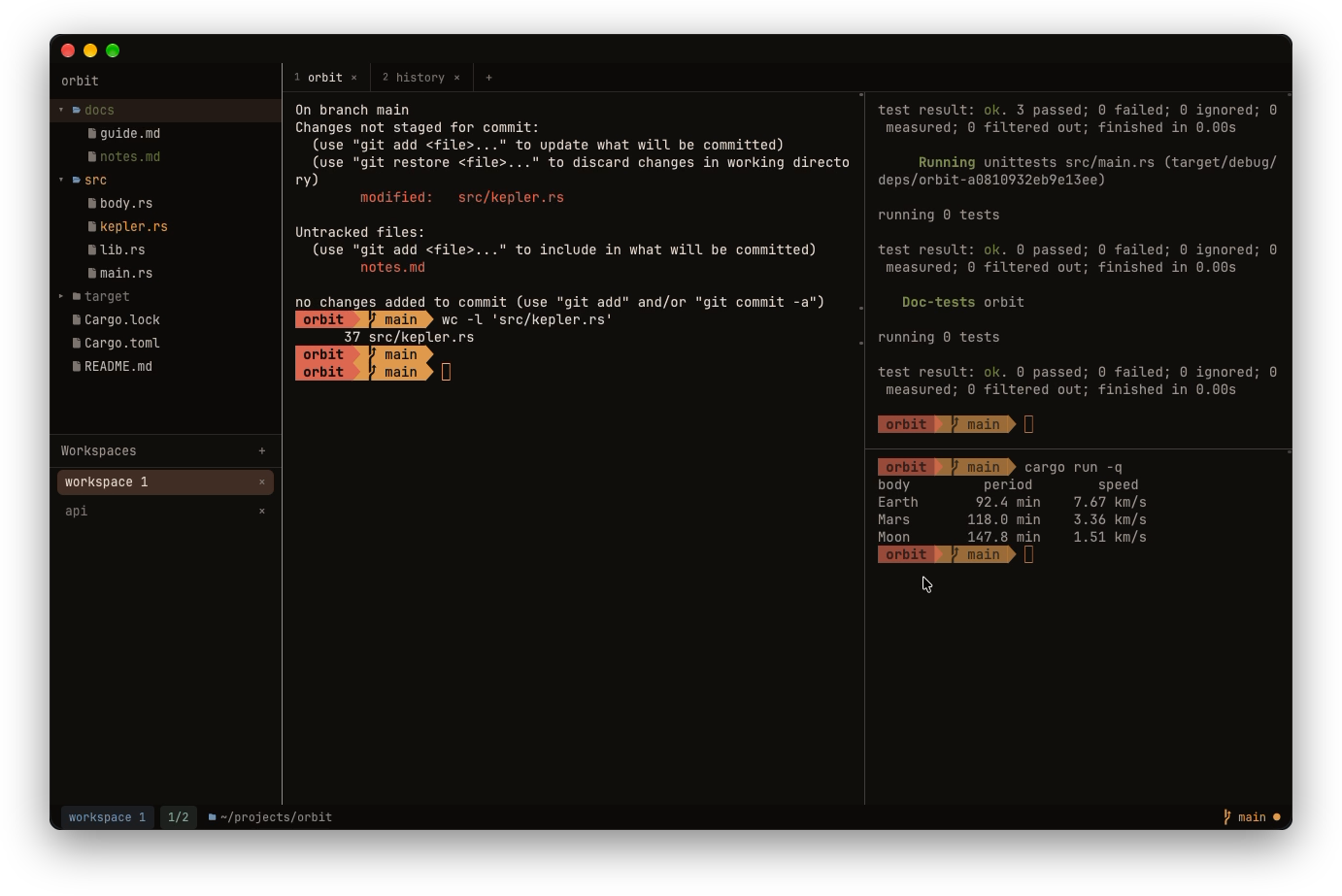
A minute in Oxide
A closer look
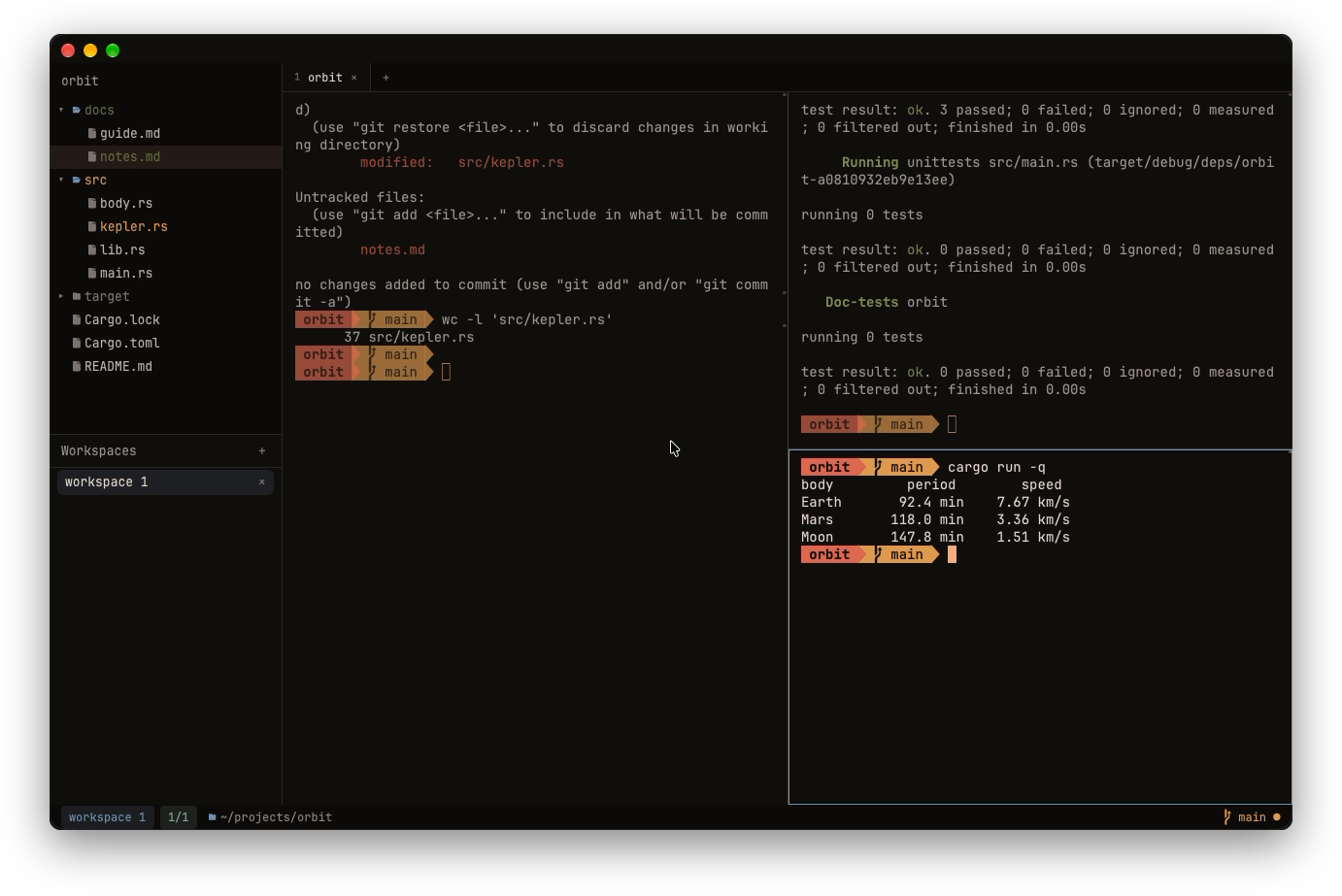
cargo test above cargo run beside it.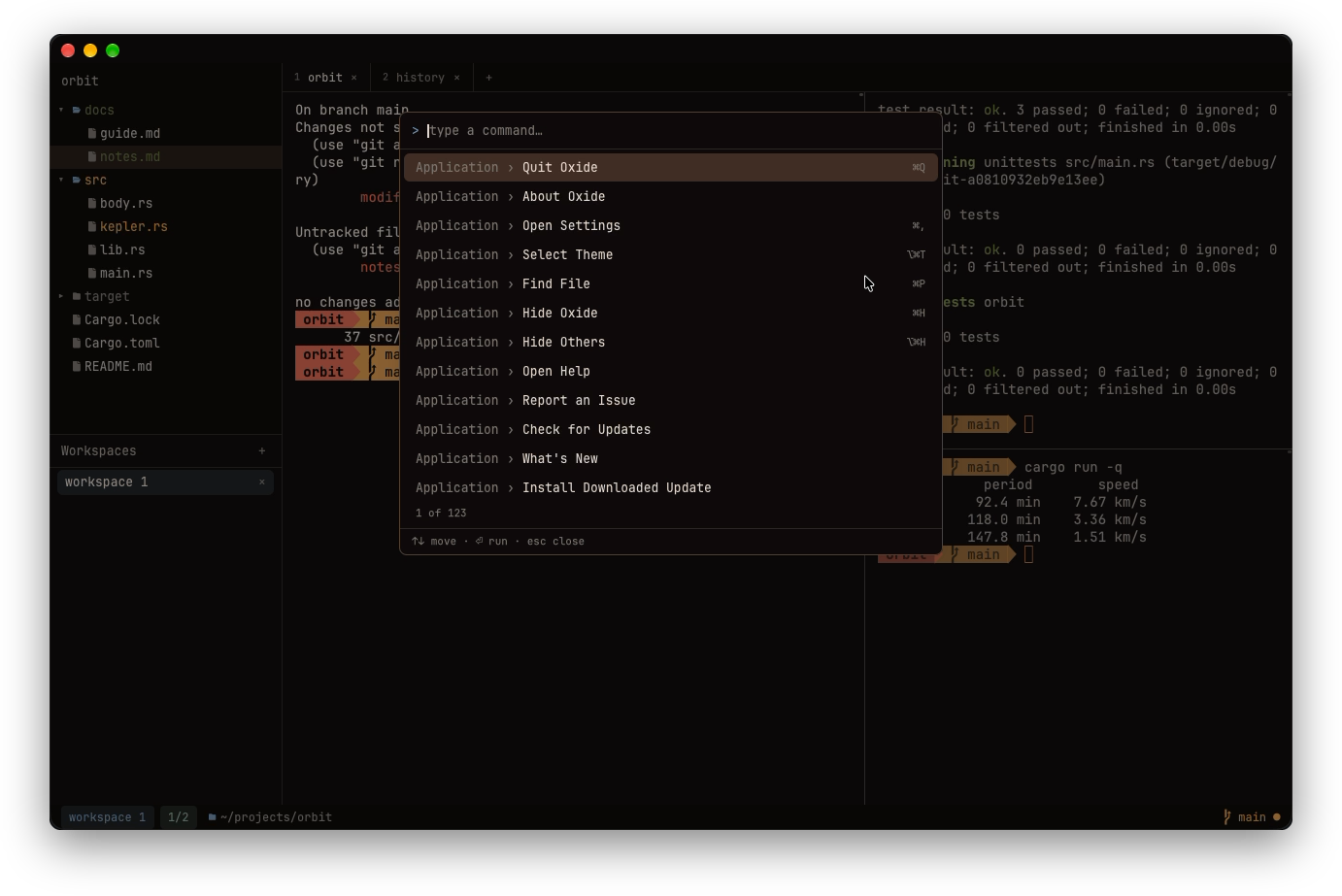
cmd-shift-p): every action, fuzzy-searchable, with its binding.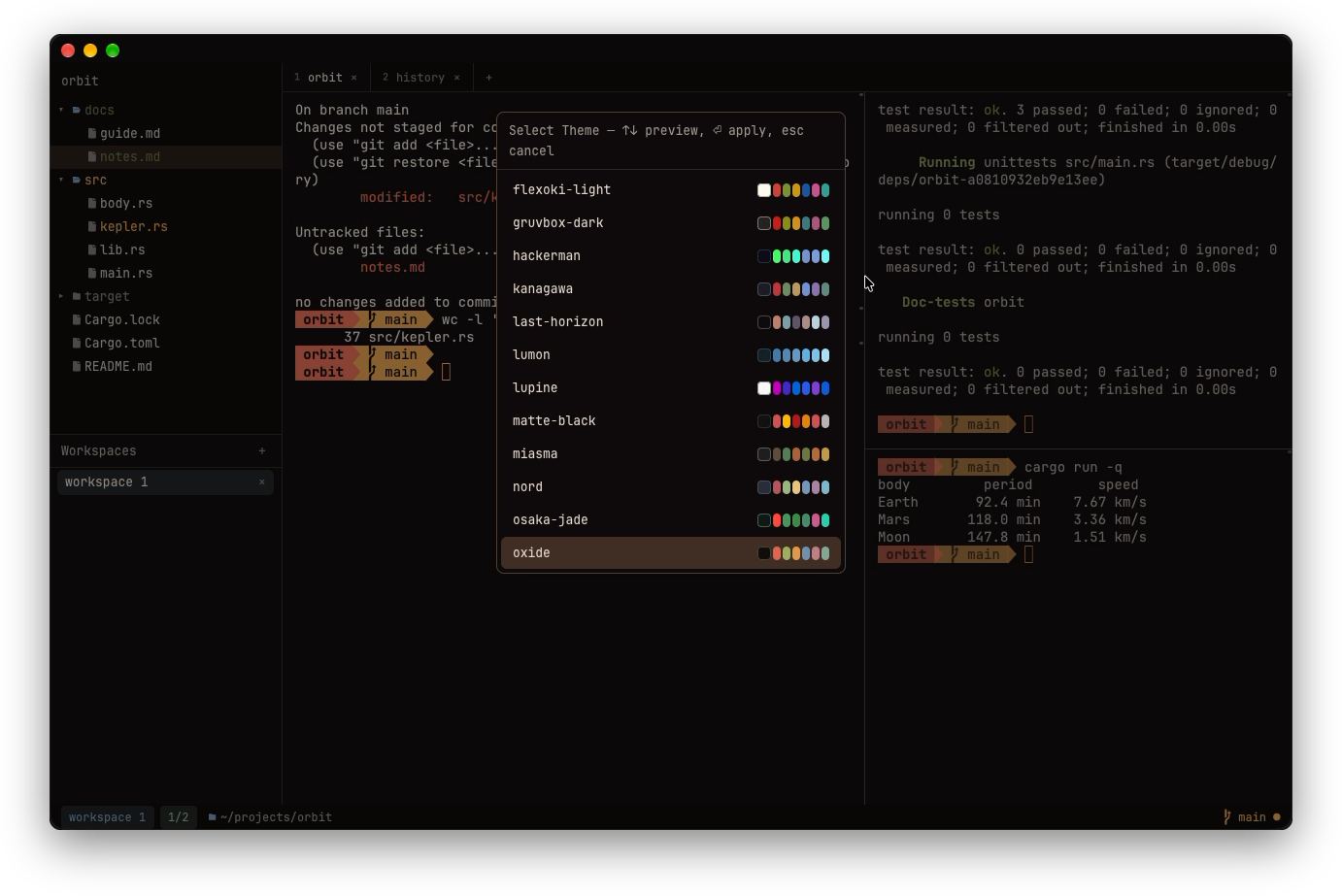
cmd-alt-t) repaints the whole window as you move through it.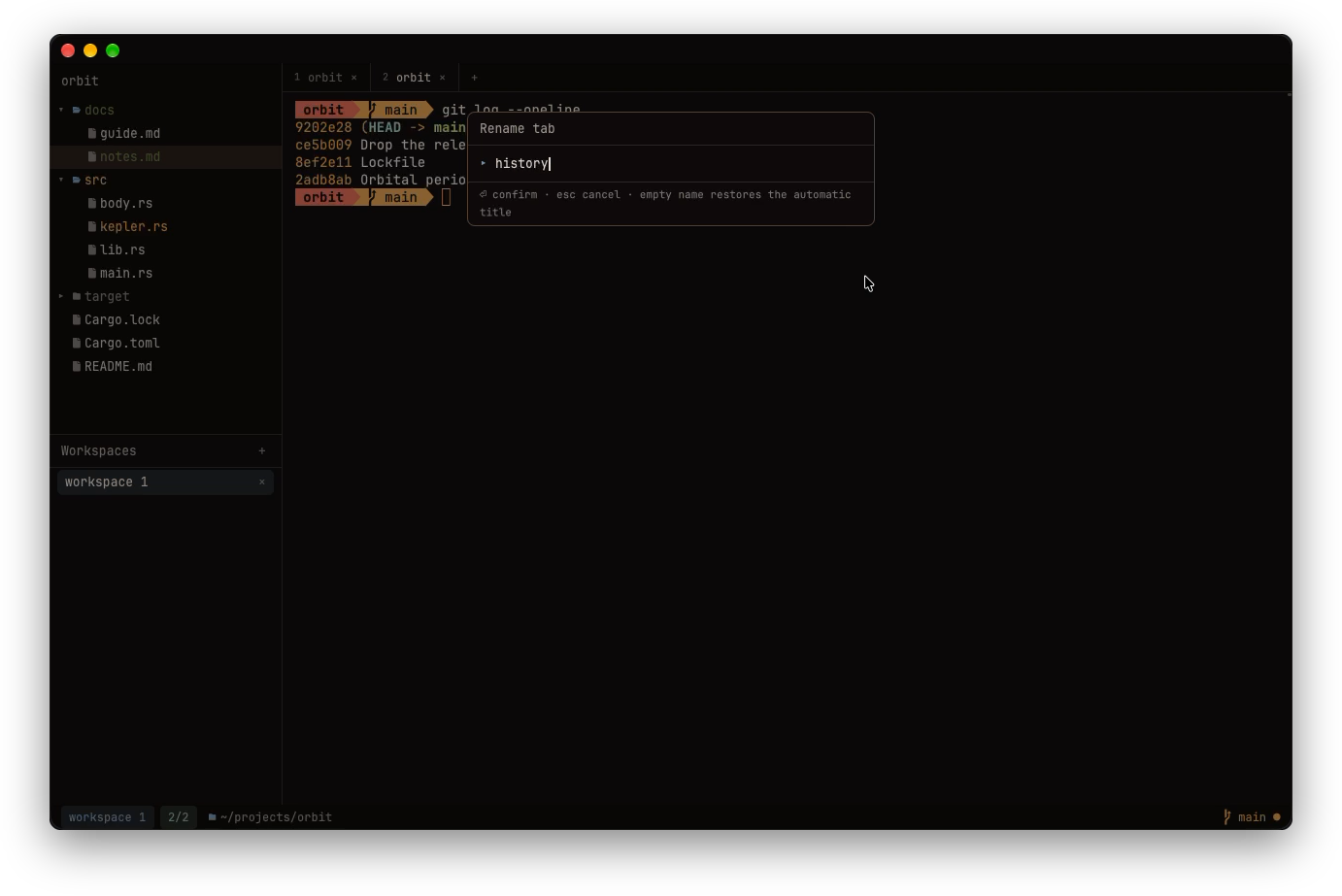
ctrl-w , or a double-click; an empty name restores the automatic title.What it does
A real terminal
Full VT emulation via Alacritty's parser: truecolor, wide glyphs and combining marks, bracketed paste, SGR mouse reporting, alternate-screen scrolling, OSC 8 hyperlinks, OSC 52 clipboard. vim, htop, and tmux just work.
Inline images
The kitty graphics protocol, iTerm2's, and sixel:
kitten icat, imgcat,
img2sixel, yazi's previews, snacks.nvim. A picture
lives in the scrollback like text does — it scrolls, reflows,
and clears — and is drawn at your display's real resolution.
File tree drawer
Modeless vim navigation (j/k/gg/G,
nvim-tree style h/l), type-to-filter
with /, file operations (a add,
r rename, d delete to Trash, drag to
move — the tree scrolls with the drag), and rows
coloured by git status. Drag the drawer's edge
to resize it. Dims gitignored files,
watches the filesystem, and follows the shell's
cd automatically.
Tree ⇄ terminal
y types the selected path at the prompt, quoted
and relative; drag a row onto a pane for the same.
cmd-click a path:line in output to
open it in $EDITOR at that line.
cmd-p fuzzy-finds any file under the root, and
cmd-shift-r reveals where the shell is.
Right-click a .md file, or press
P, to preview it rendered in a new tab or split.
Search and history
cmd-f for live search, with regex, case, and
whole-word chips; ⏎ and ⇧⏎ walk the
matches, and cmd-↑/cmd-↓ hop between
prompts. cmd-r searches every command run in any
pane, with its directory and exit status: ⏎
inserts it at the prompt, ⌘⏎ runs it.
Copy mode
ctrl-w [ turns the scrollback into a vim buffer:
hjkl, w b e, gg G,
counts like 5j, / and ?
with n/N, v /
V / ctrl-v to select,
y to yank and leave. The last reason to keep tmux
running, gone.
Knows where you are
Oxide watches each pane's foreground process. Inside
ssh, the status bar says ssh: host,
the tab is titled after it, and a [[ssh.hosts]]
pattern gives a host an accent — so a production box wears a
red border for as long as you're on it.
Git-aware status bar
Current working directory plus branch, dirty state, and ahead/behind — rendered natively, not shelled out to on every prompt.
Commands, understood
The shell integration's OSC 133 markers are read straight off
the PTY, so Oxide knows what's running, how long it took, and
whether it failed. Elapsed time ticks in the status bar, tabs
get activity dots, a background pane that fails flashes red,
and a gutter tick per command jumps you back to it. Long or
failed commands in a pane you aren't watching post a
notification you can click to get there.
cmd-shift-c copies the last command's output.
Configurable prompt
Compile a powerline prompt from TOML segments — cwd,
git, exit_status, time,
duration — injected without touching your dotfiles,
with OSC 133 semantic markers. Or set
prompt.enabled = false and keep starship or p10k
exactly as it is.
Themes
catppuccin-mocha, catppuccin-latte,
gruvbox-dark, tokyonight,
dracula, nord,
solarized-dark, and oxide (rust-toned,
naturally), plus the Omarchy set: kanagawa,
everforest, osaka-jade,
matte-black, and more. 25 presets in all. Any color individually overridable, and
follow_system = true flips between a dark and a
light preset with the system appearance. Config reloads live.
Tabs, everywhere
An in-app tab bar — not native window tabbing, so it
works the same under tiling window managers like AeroSpace or
Hyprland.
cmd-t for a new one, cmd-1–9
to jump, starting in the current directory or ~/ via
window.new_tab_directory. Rename with a
double-click, drag to reorder, cmd-shift-t to
bring back the one you just closed.
Workspaces
Named sets of tabs and splits, tmux-session style, managed from a
panel below the file tree — add, rename, delete, drag to
reorder, or pin one to persist. Pinned workspaces restore their full layout and every
pane's directory the next time you launch, with fresh shells
— and each pane can carry a startup command
(ctrl-w r, prefilled with the last thing you ran
there) that runs again once its shell is at a prompt. Back to
the shell, close the pane, or restart with backoff when it exits.
Palette and keys
cmd-shift-p lists every action with its binding,
fuzzy-searchable. A [keymap] table rebinds
anything; a typo gets a toast with a suggestion, and a bare key
that would steal from your shell is refused. Splits resize by
dragging a divider or with ctrl-w < > - + =;
ctrl-w z zooms a pane, ctrl-w b
broadcasts your typing to every pane in the tab (loudly),
ctrl-w o closes the others, ctrl-w x
swaps neighbours, and inactive panes can be dimmed.
The details
Installed copies check for releases: on macOS the update
downloads in the background and swaps itself in on one click
— every build Developer ID signed and notarized — and on Linux
a pill points at the release. The first launch after
an update opens what's new in a tab. Notices and errors arrive as
toasts in the corner, not modal dialogs. Plus window size and position
persistence, copy-on-select, font size at runtime
(cmd +/-/0), a configurable bell, a
[cursor] section (block, bar, or underline; vim's
per-mode shapes honoured), font fallbacks for CJK and emoji, a
"lines above" pill while scrolled up, and cmd-k to
clear.
How Oxide compares with iTerm2, Ghostty, kitty, and the rest →
Keys
Anywhere
| ctrl-w t/ctrl-w w | focus the tree / toggle tree & terminal |
| ctrl-w h j k l | move between split panes |
| ctrl-w v/ctrl-w s | split right / down |
| ctrl-w < > - + = | resize the pane / equalise |
| ctrl-w z b o x | zoom / broadcast / close others / swap |
| ctrl-w [ | copy mode — vim keys in the scrollback |
| cmd-shift-p/cmd-p | command palette / file finder |
| cmd-b | toggle the drawer |
| cmd-f/cmd-k | search scrollback / clear it |
| cmd-↑/cmd-↓ | previous / next prompt |
| cmd-r/cmd-shift-c | command history / copy last output |
| cmd-t/cmd-n | new tab / new window |
| ctrl-w ,/cmd-shift-t | rename tab / reopen closed tab |
| ⌃tab ⇧⌘]/⌃⇧tab ⇧⌘[ | next / previous tab |
| cmd + - 0 | font size |
In the tree
| j k gg G | move |
| l/h | expand & descend / collapse & ascend |
| enter/o | open dir, or file in $EDITOR |
| c/- | re-root at selection / at parent |
| / | filter |
| a r d | add / rename / delete to Trash |
| I/R | toggle hidden / refresh |
macOS spellings; on Linux, cmd is
ctrl-shift and tabs are
alt-1…9.
The full keymap, both platforms →
Install
macOS
Grab the DMG, drag Oxide to Applications, and open it. The build is signed with a Developer ID certificate and notarized by Apple, so there's no right-click-to-open dance.
Or install Oxide Terminal with Homebrew:
brew install --cask oxide-terminal/tap/oxide-terminal
- macOS 12 or later, Apple Silicon or Intel
Oxide keeps itself up to date after that: it checks the manifest at 'downloads.oxideterminal.com' on launch and every six hours, or on demand via Oxide → Check for Updates…
Linux
On Arch and derivatives, a pacman package from the repo's PKGBUILD (the AUR listing is coming):
git clone https://github.com/oxide-terminal/oxide.git
cd oxide/packaging/aur/oxide-terminal-bin
makepkg -si
On any distro, the release tarball:
tar xzf oxide-<version>-linux-x86_64.tar.gz
cd oxide-<version>-linux-x86_64
./install.sh                # into ~/.local, no root
- Wayland or X11, x86_64
- glibc 2.35 or newer — Ubuntu 22.04, Debian 12, Fedora 36 and later
-
A Vulkan driver (Mesa's
vulkan-radeon/vulkan-intel, ornvidia-utils) andlibnotifyfor notifications
Installed copies announce a newer release in the top-right
corner; makepkg -si again or a fresh
tarball does the update.
Or build from source
# needs Rust (2024 edition); on macOS, full
# Xcode with the Metal toolchain
git clone https://github.com/oxide-terminal/oxide.git
cd oxide
cargo run                   # development

./scripts/bundle.sh         # macOS -> target/Oxide.app
./scripts/linux-package.sh  # Linux -> target/*.tar.gz
The first build compiles GPUI and its shaders — expect several minutes. Full instructions, including the Linux build dependencies, are in the install docs.
No font to install on either platform — JetBrainsMono
Nerd Font
Mono is bundled, so the prompt and tree icons render out of the
box. Set font.family to use your own.
Configuration
Everything lives in one file at
~/.config/oxide/config.toml, and a
fully commented default is generated on first run. Font,
colors, keys, and notifications apply live — save the file and
the window repaints. [shell] and
[prompt] apply to new sessions.
[colors]
preset = "oxide"
follow_system = true
preset_light = "catppuccin-latte"

[font]
family = "JetBrainsMono Nerd Font Mono"
size = 14.0

[cursor]
style = "bar"

[[ssh.hosts]]
match = "*.prod.example.com"
accent = "#f38ba8"

[[prompt.segments]]
kind = "cwd"
[[prompt.segments]]
kind = "git"

[keymap]
"cmd-j" = "pane::split_down"

[notifications]
min_duration = "1m"